
Scene Timer Instructions
Scene Timer tracks the duration of a scene, alerting players when to start wrapping things up and when the scene should be over. This app is useful for training, rehearsals, and performances.
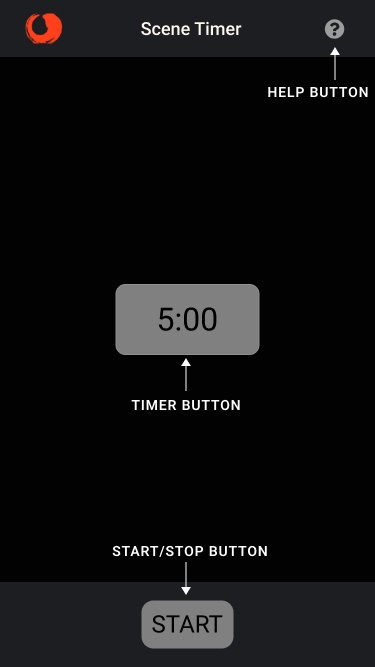
Set the scene length – Tap the timer button to cycle through scene times by five minute increments, from 5 to 35 minutes.
Start the timer – When the scene starts, tap the start button to begin the countdown. When two minutes remain, the screen turns solid red. When the countdown reaches zero, the screen blinks red and the timer counts up, showing the time past the end of the scene.
Stop the timer – When the scene ends, tap the stop button and the timer button shows the total scene time.
Reset the timer – Tapping the timer button when it’s showing the total scene time resets the countdown timer.
Tip
In some theatres, the scene timer may not be bright enough to be seen from the booth to the stage. A low-cost alternative is a runner’s safety light. These are easily visible and have settings for both solid and blinking lights.
If you have suggestions for improvements to the Scene Timer, contact us!
Don’t have the Scene Timer yet? Get it here.